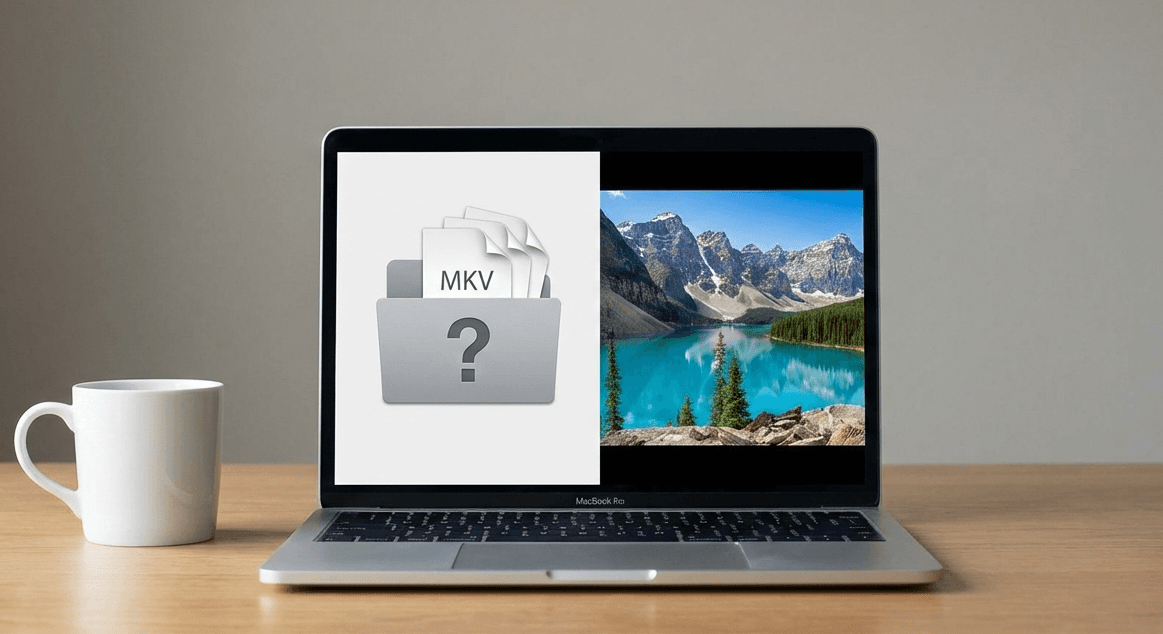
If you’ve ever double‑clicked a video on your Mac only to see QuickTime refuse to open it, there’s a good chance the file was an MKV. This is a common frustration for macOS users — and it’s not because the file is broken.
In this article, we’ll explain why MKV files don’t open in QuickTime, what MKV files actually are, and the easiest ways to play them on macOS without converting.
What Is an MKV File?
MKV (short for Matroska Video) is a video container format. Instead of defining how video is encoded, it packages video, audio, subtitles, and metadata into a single file.
MKV files are popular because they support:
-
High‑quality video (including 4K and HDR)
-
Multiple audio tracks
-
Embedded subtitles
-
Chapter data and metadata
Because of this flexibility, MKV is widely used for movies, TV shows, and high‑quality rips.
Why QuickTime Doesn’t Support MKV
QuickTime is built around Apple‑preferred formats like MP4, MOV, and HEVC. While it supports modern codecs, it does not support the MKV container itself.
This is a design choice, not a technical limitation. Apple prioritizes formats that align closely with its media ecosystem and streaming standards. MKV, while powerful and widely used, sits outside of that ecosystem.
As a result:
-
MKV files won’t open in QuickTime
-
You may see an error or nothing happen at all
-
The file itself is usually perfectly fine
How to Fix It: Best Ways to Play MKV Files on macOS
1. Use a Video Player That Supports MKV
The simplest solution is to use a video player that supports MKV files directly.
A good MKV player for macOS should:
-
Play MKV files without conversion
-
Support subtitles and multiple audio tracks
-
Handle HDR and high‑resolution video correctly
-
Run efficiently on Apple Silicon Macs
Vidi, for example, supports MKV playback using FFmpeg for decoding while relying on Apple’s native display and audio pipelines. This allows MKV files to play smoothly, look correct on Mac displays, and use less CPU and battery.
Other players like VLC and IINA also support MKV, though their level of macOS integration and efficiency can vary.
2. Convert MKV to MP4 (Usually Not Recommended)
Another option is to convert MKV files into a QuickTime‑friendly format like MP4 using tools such as HandBrake.
However, conversion has downsides:
-
It takes time
-
It uses significant CPU
-
It may reduce video or audio quality
-
Subtitles and audio tracks can be lost or altered
For most users, conversion isn’t necessary.
Why Native macOS Playback Matters
Many video players can technically play MKV files, but how they’re built matters.
Players that use Apple’s native display pipeline can:
-
Render video with accurate color and HDR
-
Reduce CPU usage
-
Improve battery life on Apple Silicon Macs
Similarly, using Apple’s audio engine ensures better audio quality and consistency across headphones and speakers.
This is especially noticeable with high‑resolution or HDR MKV content.
Conclusion
MKV files don’t open in QuickTime because the format isn’t supported — not because there’s anything wrong with the file.
With the right video player, you can play MKV files instantly on macOS without converting, losing quality, or dealing with clunky interfaces.
If you regularly watch MKV content on your Mac, using a player designed for modern macOS makes the experience significantly better.