Choosing a video player on macOS used to be straightforward. Today, with Apple Silicon Macs, HDR displays, and higher expectations around battery life and visual quality, how a video player is built matters just as much as what it can play.
VLC, IINA, and Vidi are three of the most talked-about video players on macOS. Each takes a very different approach. This article breaks down those differences without a feature checklist — focusing instead on real-world experience.
VLC: The Universal Workhorse
VLC has been around for years and earned its reputation by playing almost any video file you throw at it. For many users, it’s the default “just make it open” solution.
On macOS, however, VLC shows its age. The interface doesn’t feel particularly Mac-native, and its cross-platform nature means it can’t fully take advantage of Apple’s display and audio systems. HDR content can look inconsistent, and power usage is often higher than expected on Apple Silicon Macs.
VLC is best if: You value maximum compatibility above everything else and don’t mind a less polished macOS experience.
IINA: The Popular Mac-Friendly Choice
IINA is often recommended as the modern VLC alternative. It looks better, integrates more naturally with macOS, and offers extensive customization. Under the hood, though, it relies on the mpv playback engine — a powerful but cross‑platform foundation.
For most everyday use, IINA performs well. That said, because it doesn’t fully use Apple’s native display and audio pipelines, HDR handling, color accuracy, and power efficiency can vary depending on content and settings.
IINA is best if: You want a free, open‑source player that feels reasonably Mac‑like and gives you lots of control.
Vidi: Built Specifically for macOS
Vidi takes a different approach. Instead of building on a cross‑platform rendering layer, it’s designed from the ground up for macOS and Apple Silicon.
Video decoding is handled by FFmpeg, but rendering goes directly through Apple’s native display pipeline. This allows Vidi to deliver accurate HDR, correct color on modern Mac displays, and lower CPU usage — which translates to better battery life during long playback sessions.
On the audio side, Vidi uses Apple’s audio engine, enabling features like Spatial Audio on any headphones while keeping sound quality consistent and clean.
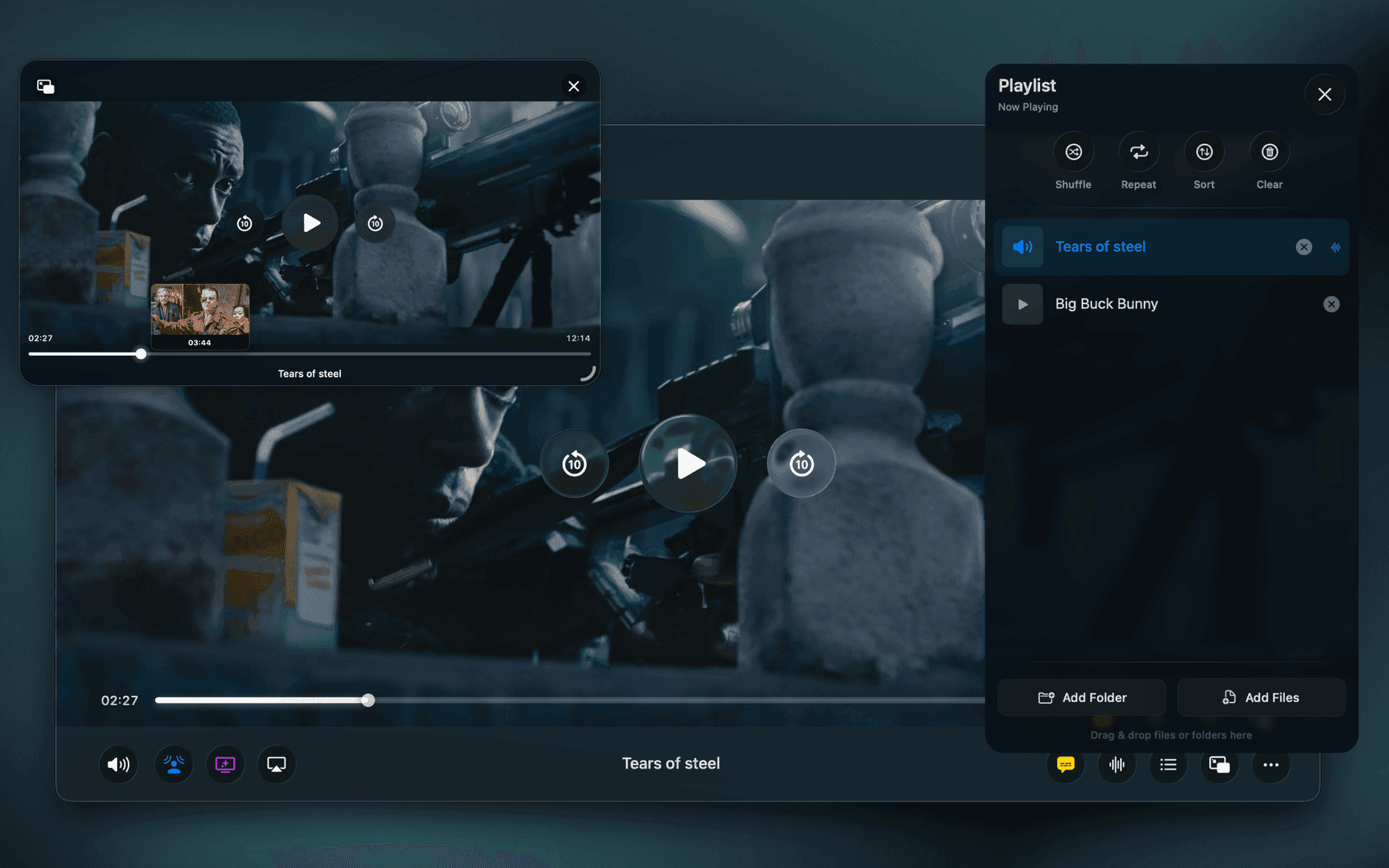
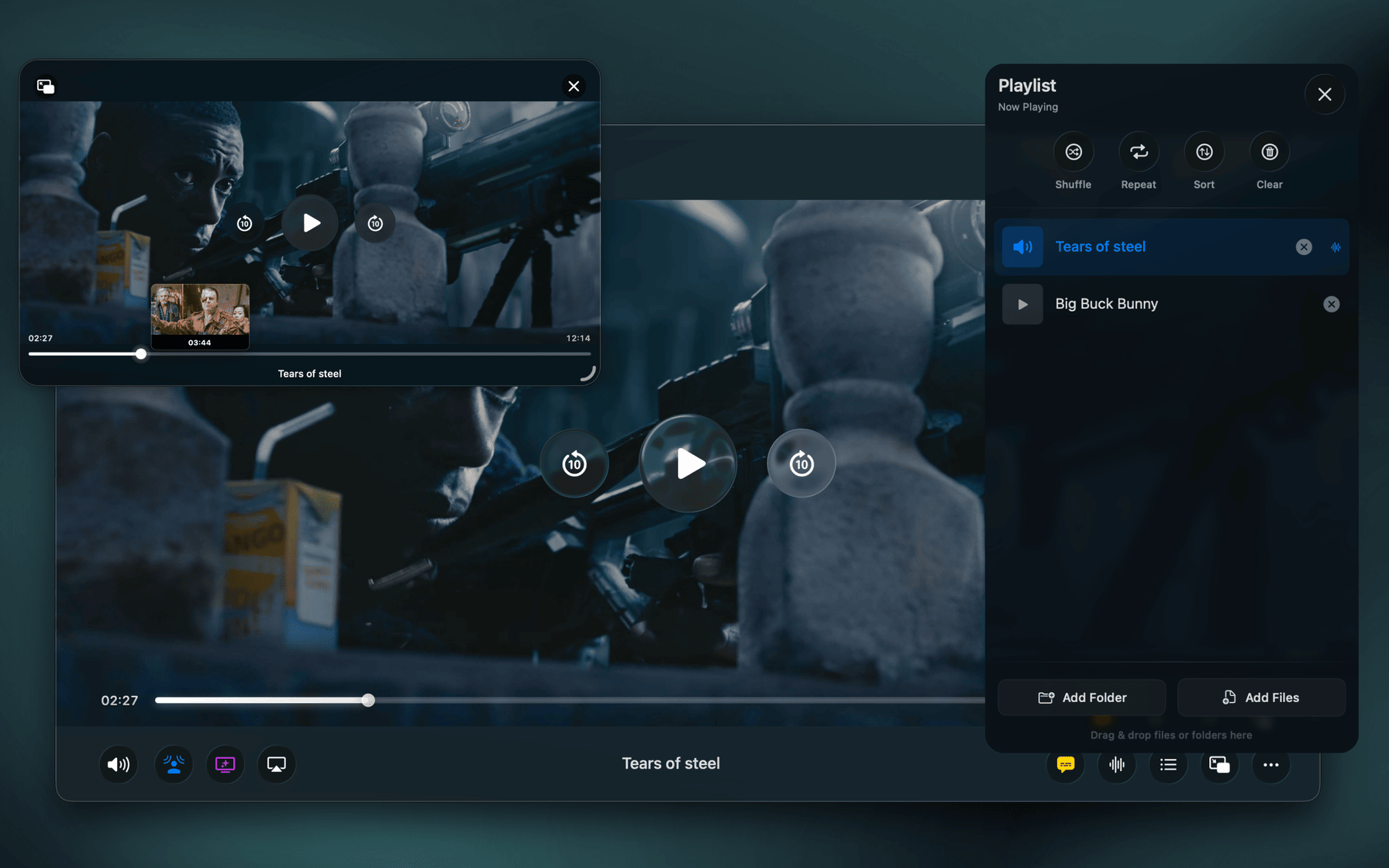
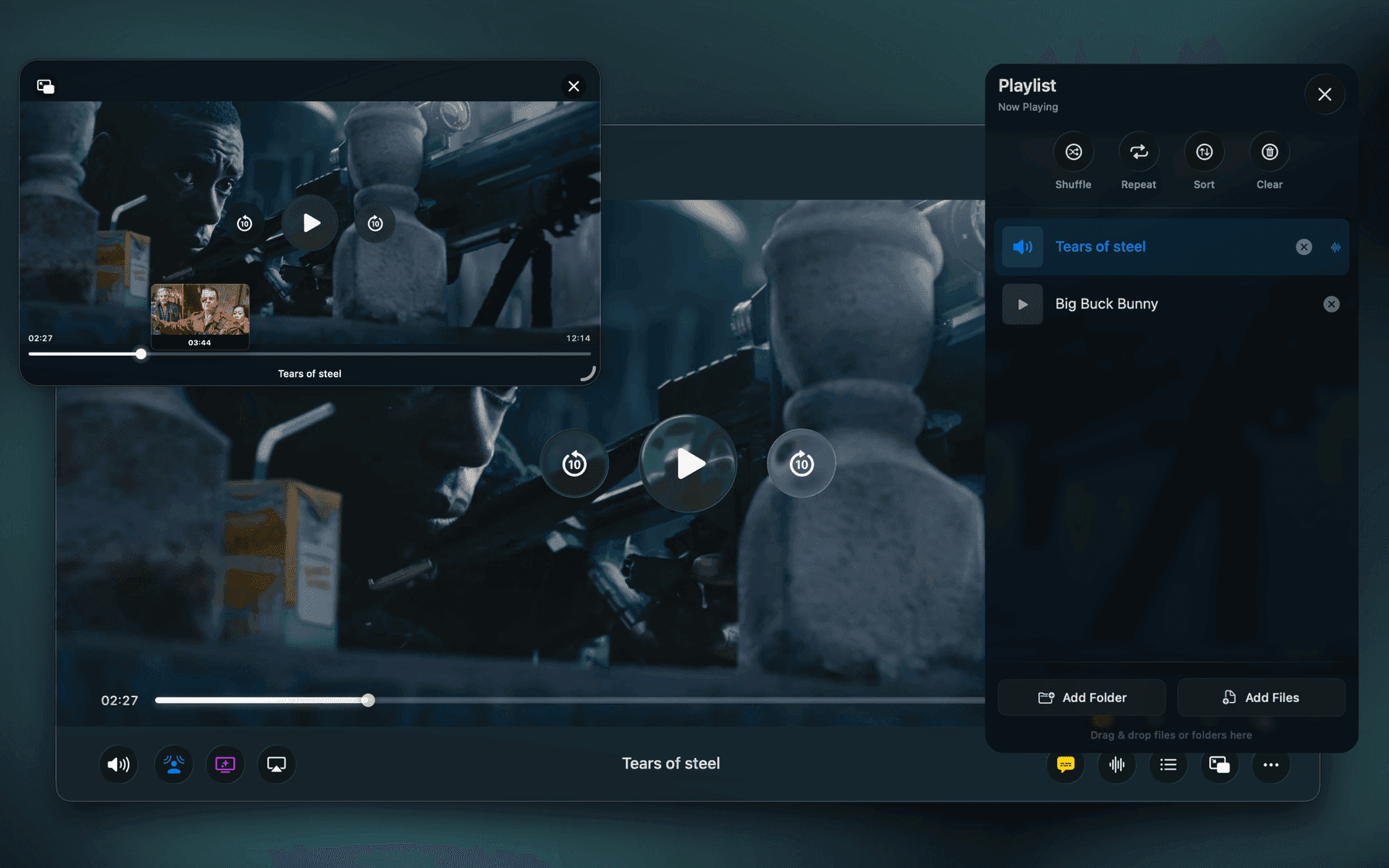
The interface is fully designed around modern macOS, including the Liquid Glass aesthetic, and focuses on staying out of the way while still offering thoughtful features like advanced Picture‑in‑Picture, smart resume, and subtitle discovery.
Vidi is best if: You want a video player that feels truly native, looks great on modern Mac displays, and is optimized for Apple Silicon efficiency.
So, Which One Should You Choose?
There’s no single right answer — it depends on what you care about most:
-
Choose VLC if format compatibility is your top priority
-
Choose IINA if you want a free player with a cleaner macOS feel
-
Choose Vidi if you want the most native, efficient, and visually accurate experience on modern Macs
Final Thoughts
Apple Silicon Macs reward software that’s built specifically for them. When it comes to video playback, deeper integration with macOS display and audio systems can make a noticeable difference in image quality, sound, and battery life.
All three players can get the job done — but for users who care about how video looks and feels on macOS, the underlying approach matters more than ever.