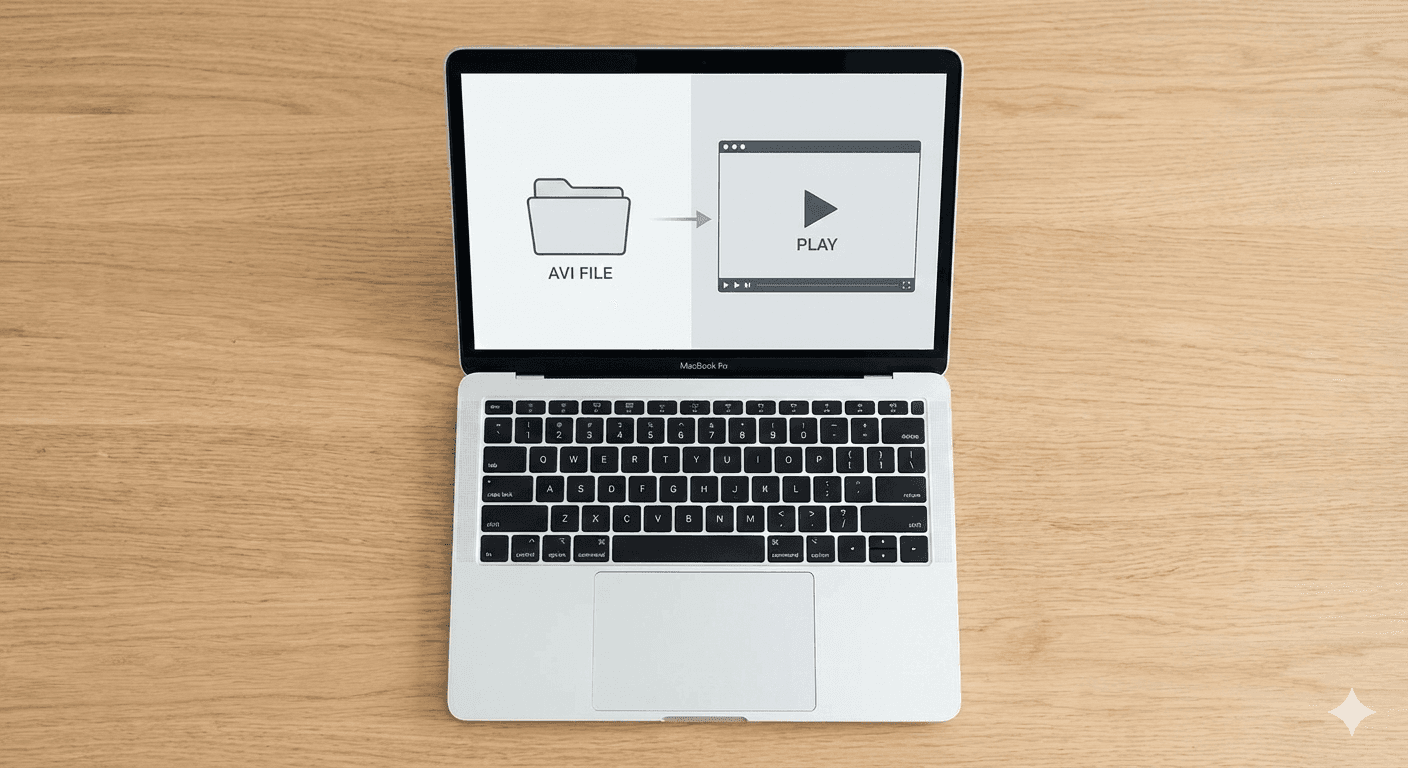
You double-click a video file someone sent you. It's an .mkv, an .avi, or a .webm. Instead of your video playing, you get the same frustrating error:
"The file ... is not compatible with QuickTime Player."
We've all been there. We love our Macs for their simplicity, but this is one area where things just don't "work."
So, why does this happen? And what's the best way to fix it?
Why QuickTime Can't Play Your Video
In short, QuickTime is a fantastic, efficient player, but it's very picky. It's designed to play a small number of formats perfectly, primarily .mp4 and .mov.
Files like MKV (Matroska), AVI, and WebM are "containers." Think of them as a box that holds a video track, one or more audio tracks, and subtitles. These containers often use "codecs" (video languages) that QuickTime simply doesn't understand.
So, when QuickTime sees an MKV, it doesn't know how to open the box.
For years, Mac users have relied on a few "old" solutions.
The "Old" Solutions (and Their Flaws)
1. Video Converters (like HandBrake)
-
The Idea: You take your
video.mkvand use an app to "convert" it into avideo.mp4. -
The Problem: This is painfully slow. A one-hour video can take 20 minutes to convert, and you lose quality in the process. You have to do this every single time you get a new file. It's a terrible workflow.
2. VLC (VideoLAN Client)
-
The Idea: The "Swiss Army knife" of video players. It's famous for playing anything you throw at it.
-
The Problem: While it works, it never feels right on a Mac. The interface is dated, it lacks modern features like Picture-in-Picture, and its video rendering isn't always the best (especially with HDR content, which often looks washed out).
3. Other Players (like IINA)
-
The Idea: A more modern take on VLC, IINA wraps a powerful playback engine in a much nicer, Mac-native interface.
-
The Problem: This is a big step up, but it has its limits. It can struggle significantly with high-performance files (like demanding HDR videos), causing high CPU use and stuttering. Its features, like Picture-in-Picture, are often the bare-bones default.
This forces a frustrating choice: do you want a player that works (VLC) or a player that feels right (QuickTime) but doesn't work with your files?
What if you could have both?
The Modern Solution: A Player That Does It All
What you need is a player that combines the universal format support of VLC with the native performance and designof a true Mac app.
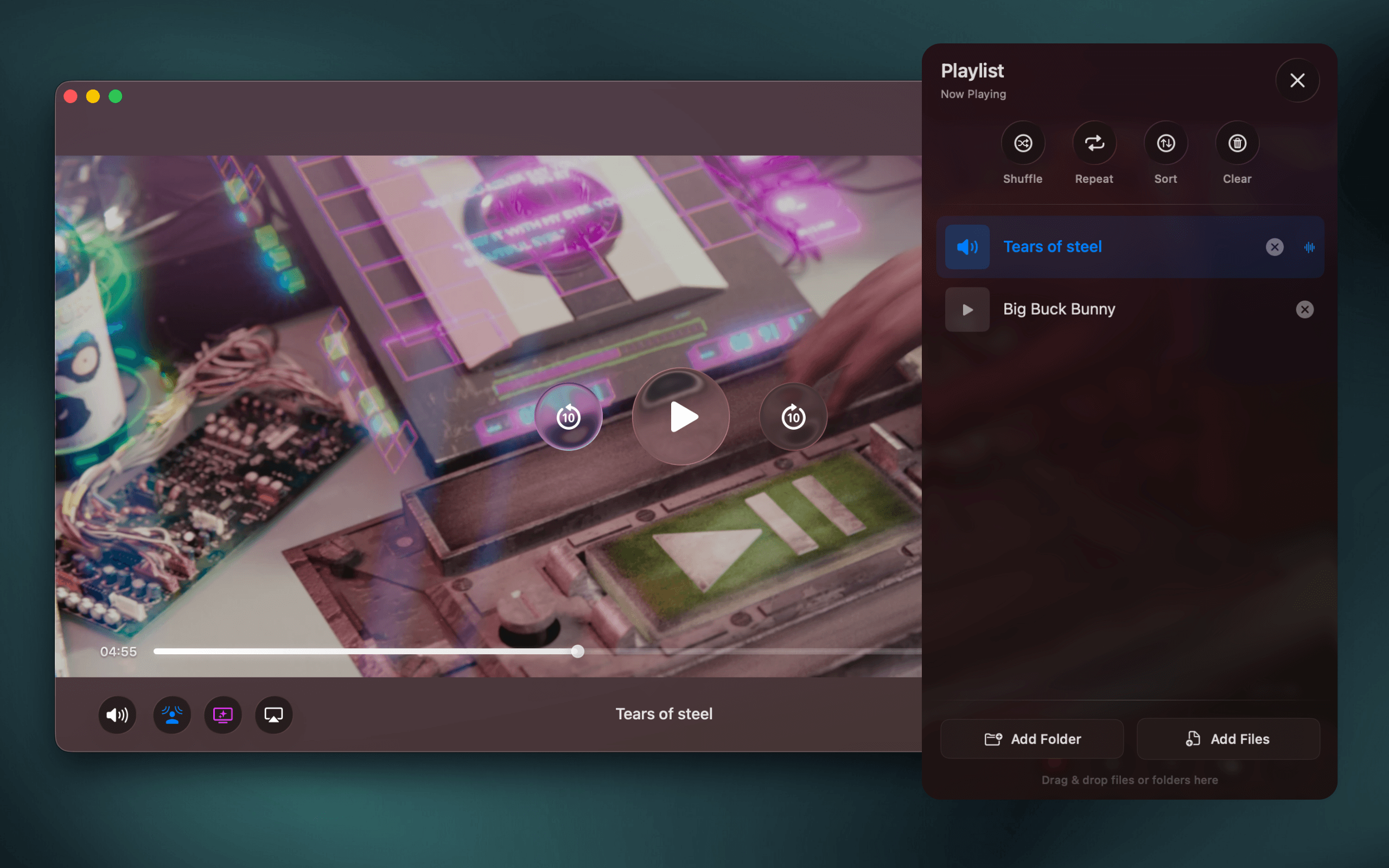
That's exactly why we built Vidi.
Vidi is a modern video player, built from the ground up for the Mac. It's designed to be the one player you need.
-
It Plays Everything. Just drag, drop, or open your file. MKV, AVI, WebM, MP4, MOV, and countless others—they just work. No errors, no converters.
-
It's Incredibly Efficient. Because Vidi is a native app that leverages modern Apple technologies, it sips battery and uses minimal CPU. It's optimized for everything from a MacBook Air to a Mac Studio.
-
It Has Perfect Video Quality. Vidi is designed to render video with perfect, true-to-life color, especially on modern Mac displays. It handles HDR content flawlessly, the way it was meant to be seen.
How to Get Started (for Free)
The best part? The core Vidi player—the part that solves this entire problem and plays all your video files—is completely free.
You can download Vidi from the Mac App Store today. Stop converting files and stop using dated players.
And when you're ready, Vidi also has a suite of powerful pro features, like an Advanced Picture-in-Picture(with timeline scrubbing), a full Immersive Audio Suite (with Voice Boost!), and a stunning Ambient Mode. They're unlocked by a single one-time purchase inside the app — no subscription.