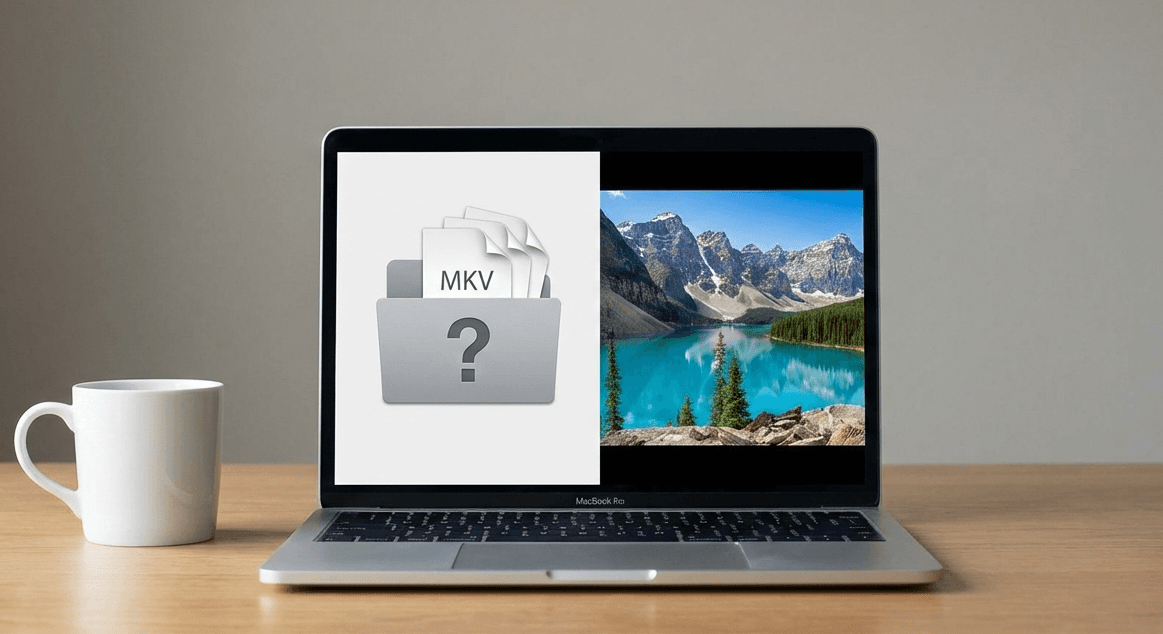
If you’ve ever downloaded a movie or TV episode and found it wouldn’t open in QuickTime, chances are it was an MKV file. While MKV is a popular and flexible video format, macOS doesn’t support it out of the box — which can be frustrating.
Here’s what MKV files are, why macOS struggles with them, and the best way to play them without converting anything.
What Is an MKV File?
MKV (short for Matroska Video) is a container format. Instead of defining how video is encoded, it packages video, audio, subtitles, and metadata into a single file.
Because of this flexibility, MKV files are commonly used for:
-
High-quality movies and TV shows
-
Multiple audio tracks
-
Embedded subtitles
-
HDR and surround sound content
Why macOS Doesn’t Support MKV Natively
QuickTime and Safari rely heavily on Apple-supported formats like MP4. MKV isn’t one of them.
That doesn’t mean MKV is inferior — it simply means Apple prioritizes formats that align with its media ecosystem. As a result, MKV files usually won’t open in QuickTime without conversion.
Best Ways to Play MKV Files on Mac
1. Use a Dedicated Video Player
The easiest and best solution is to use a video player that supports MKV directly.
A good MKV player for macOS should:
-
Support most codecs without conversion
-
Handle subtitles and multiple audio tracks
-
Play smoothly with low CPU usage
-
Look and feel native on macOS
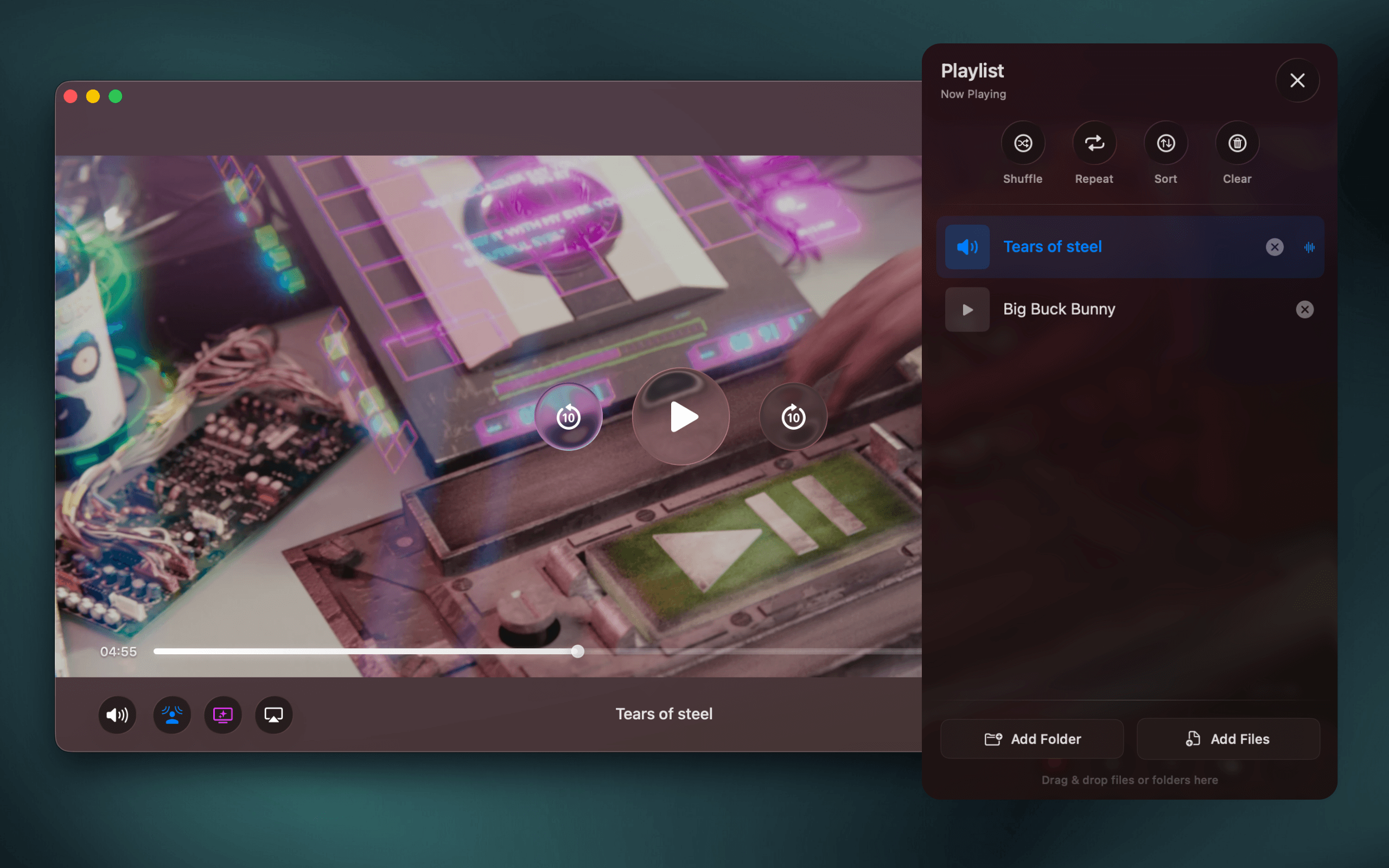
Vidi, for example, supports MKV playback using FFmpeg for decoding while relying on Apple’s native display and audio pipelines. This means MKV files play smoothly, look correct on Mac displays, and stay efficient on battery.
2. Convert MKV to MP4 (Not Recommended)
You can convert MKV files to MP4 using tools like HandBrake, but this comes with downsides:
-
Takes time
-
Uses CPU heavily
-
May reduce quality
-
Can break subtitles or audio tracks
For most users, conversion isn’t necessary.
Why a Native macOS Player Matters
Many video players technically support MKV, but not all integrate well with macOS. A native approach allows the player to:
-
Render video accurately using Apple’s display pipeline
-
Preserve HDR and color fidelity
-
Use less CPU and battery
-
Deliver better audio through Apple’s audio engine
If you watch a lot of MKV content, especially high-quality or HDR files, this difference is noticeable.
Conclusion
MKV files aren’t a problem — macOS just doesn’t handle them by default. With the right video player, you can play MKV files instantly without converting, losing quality, or dealing with clunky interfaces.
If you’re looking for a modern, native macOS video player that handles MKV files effortlessly, Vidi was built with exactly that use case in mind.