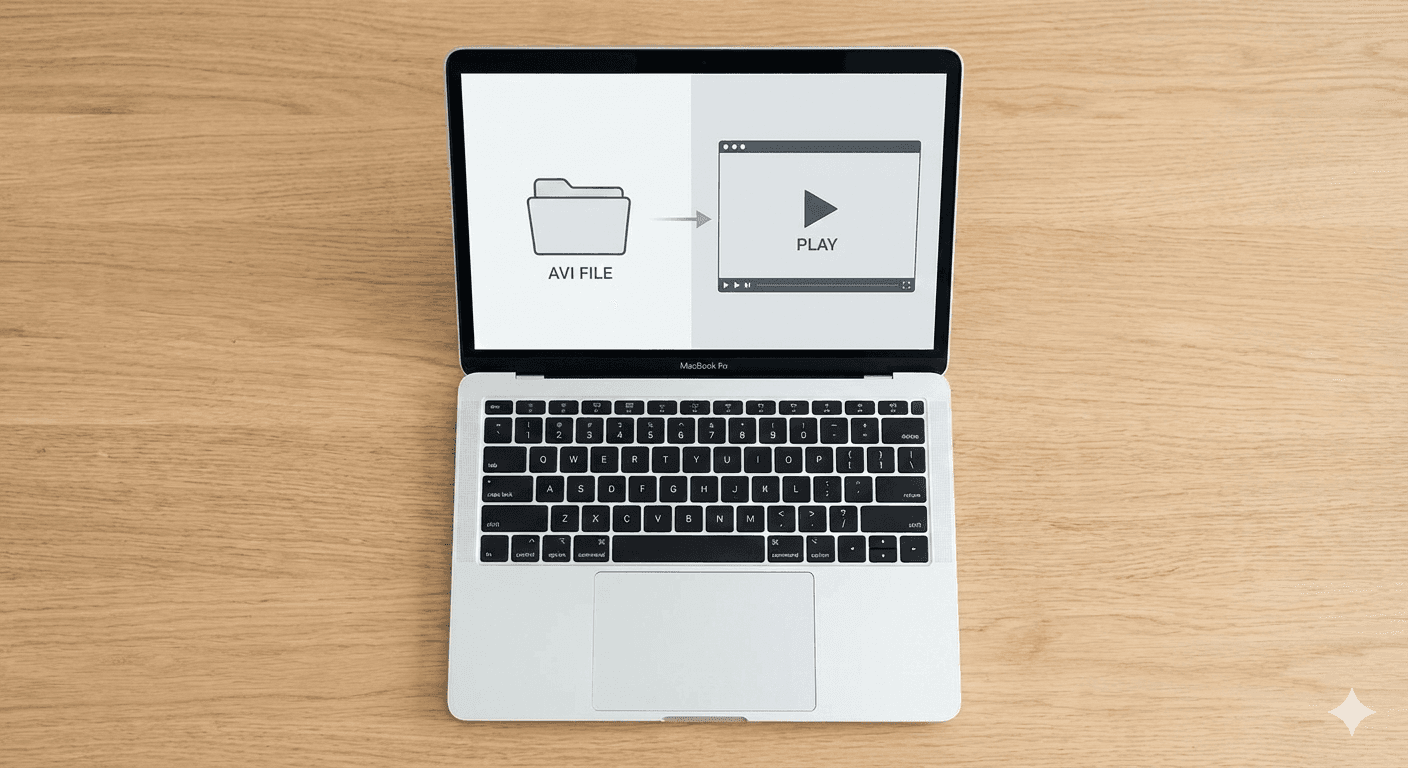
You double-click an AVI file on your Mac. QuickTime opens, shows a black screen or an error message, and you're stuck. This happens because macOS doesn't include the codecs needed to decode most AVI files—even though the format has been around since 1992.
The good news: you don't need to convert anything. You just need the right player.
Why Your Mac Won't Play AVI Files
AVI (Audio Video Interleave) is a container format, meaning it's like a box that can hold video and audio encoded in many different ways. QuickTime only understands a handful of these encoding methods (codecs). When your AVI file uses codecs like DivX, Xvid, or older MPEG variants, QuickTime simply can't read them.
This isn't a bug—it's a deliberate choice. Apple prioritizes modern formats like MP4 and MOV, which offer better compression and quality. But AVI files are still everywhere: old home videos, downloads from certain websites, files shared from Windows PCs.
How to Play AVI Files on macOS
1. Use a Player With Built-In Codec Support
-
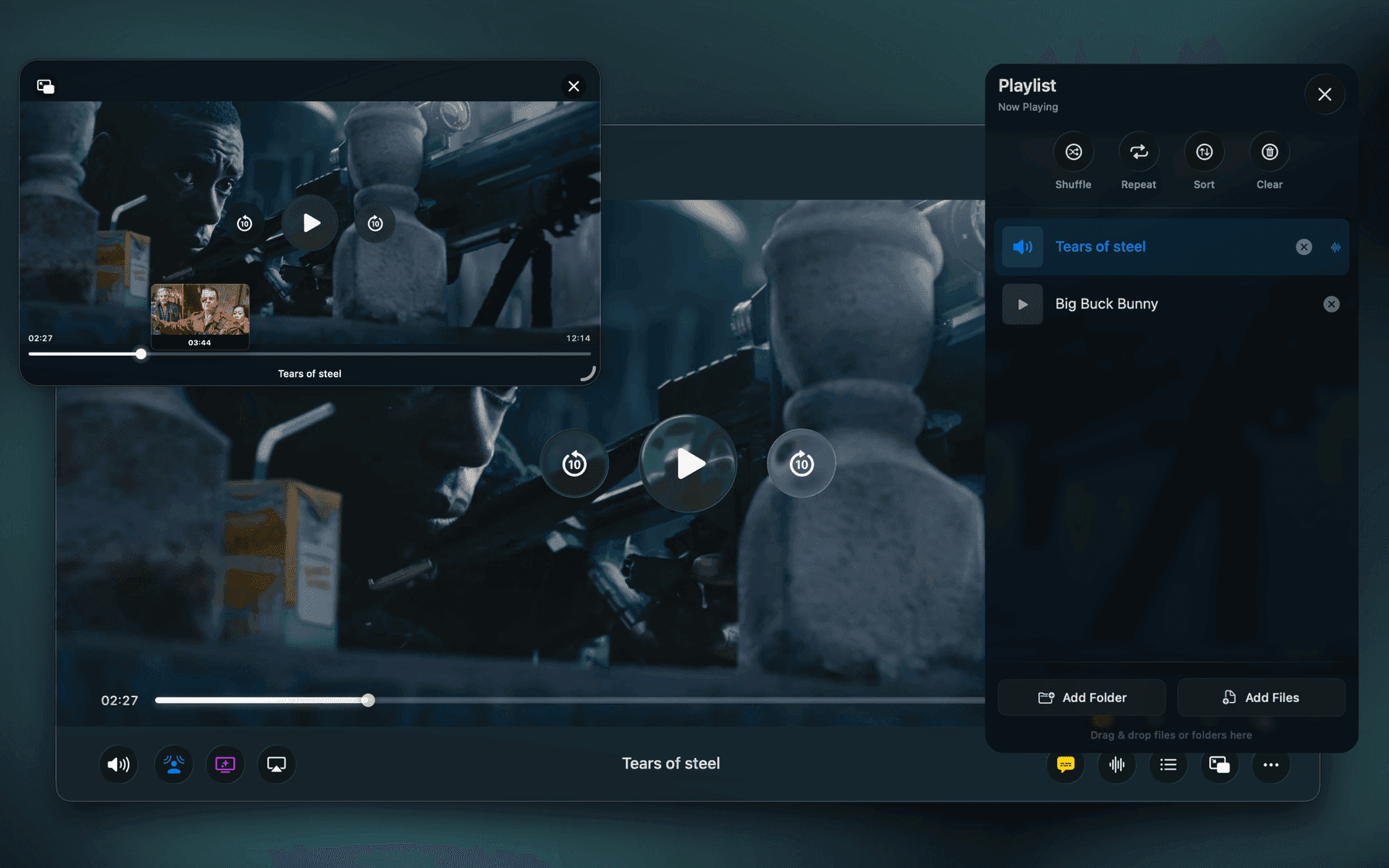
Players like VLC, IINA, or Vidi can play most AVI files out of the box.
-
No conversion is needed.
-
Keeps audio and video quality intact.
2. Convert the AVI File
-
Tools like HandBrake or FFmpeg can convert AVI to MP4, MOV, or MKV.
-
Conversion can be slow and may reduce quality.
-
Not ideal for large libraries.
3. Check Codec Requirements
-
Some AVI files use rare or proprietary codecs.
-
Using a player with broad codec support (like Vidi or VLC) avoids frustration.
Why Using a Native macOS Player Matters
-
Better performance: Players built for macOS and Apple Silicon use hardware acceleration.
-
Accurate video: Native rendering pipelines ensure correct colors and HDR support.
-
Audio quality: Built-in audio pipelines allow better sound fidelity, including Spatial Audio.
-
Battery efficiency: Lower CPU usage means longer viewing sessions without draining power.
Conclusion
AVI files may be an old format, but they’re still common. On macOS, the best way to watch them without fuss is to use a player with broad codec support that’s built for the platform. This avoids errors, keeps quality intact, and ensures smooth playback — all while leveraging Apple’s native performance benefits.