Casting video from a Mac sounds simple — until you actually try to do it. Between AirPlay, Chromecast, DLNA, and app-specific limitations, many macOS users end up confused about what works, what doesn’t, and why.
This guide explains how video casting works on macOS, the differences between the major casting technologies, and how to get the best results.
The Casting Options on macOS
macOS doesn’t have a single universal “cast” system. Instead, casting depends on the technology your TV or device supports.
The three most common options are AirPlay, Chromecast, and DLNA.
AirPlay: The Native Apple Option
AirPlay is Apple’s built-in wireless streaming technology. It’s deeply integrated into macOS and works seamlessly with Apple TV and AirPlay-compatible TVs.
How it works:
-
Video is streamed directly from your Mac to the TV
-
macOS handles synchronization, scaling, and audio routing
Pros:
-
Best integration with macOS
-
High-quality video and audio
-
Minimal setup
Cons:
-
Limited to Apple TV and AirPlay-compatible devices
-
Not supported by many smart TVs
AirPlay is usually the best option if you’re fully inside the Apple ecosystem.
Chromecast: Great Hardware, Limited macOS Support
Chromecast is popular and widely supported on smart TVs — but macOS support is more fragmented.
macOS itself doesn’t natively support Chromecast system-wide. Instead, casting usually happens inside Chrome or supported apps.
Pros:
-
Widely supported by TVs and streaming devices
-
Reliable once connected
Cons:
-
No native macOS casting
-
Limited control from desktop video players
-
Quality and subtitle support vary by app
For local video files, Chromecast on macOS often requires third-party players or workarounds.
DLNA: The Old but Flexible Standard
DLNA is a long-standing media-sharing protocol supported by many smart TVs, game consoles, and set-top boxes.
Instead of screen mirroring, DLNA lets your Mac act as a media server, allowing your TV to pull video files directly.
Pros:
-
Broad device compatibility
-
Good for local media libraries
Cons:
-
Setup can be confusing
-
Interfaces vary wildly by TV
-
Limited playback controls
DLNA works well once configured, but it’s far from user-friendly.
Why Casting Often Feels Inconsistent on macOS
Casting issues on macOS usually come down to:
-
Different devices supporting different protocols
-
Inconsistent subtitle handling
-
Limited control once playback starts
-
Players relying on external apps or browser-based casting
This is why casting local video files from a Mac often feels unreliable compared to streaming apps.
Choosing a Video Player with Casting Support
Not all Mac video players support casting — and those that do often support only one protocol.
A good casting-capable player should:
-
Support multiple casting standards
-
Handle subtitles correctly
-
Keep audio and video in sync
-
Work with local files, not just streams
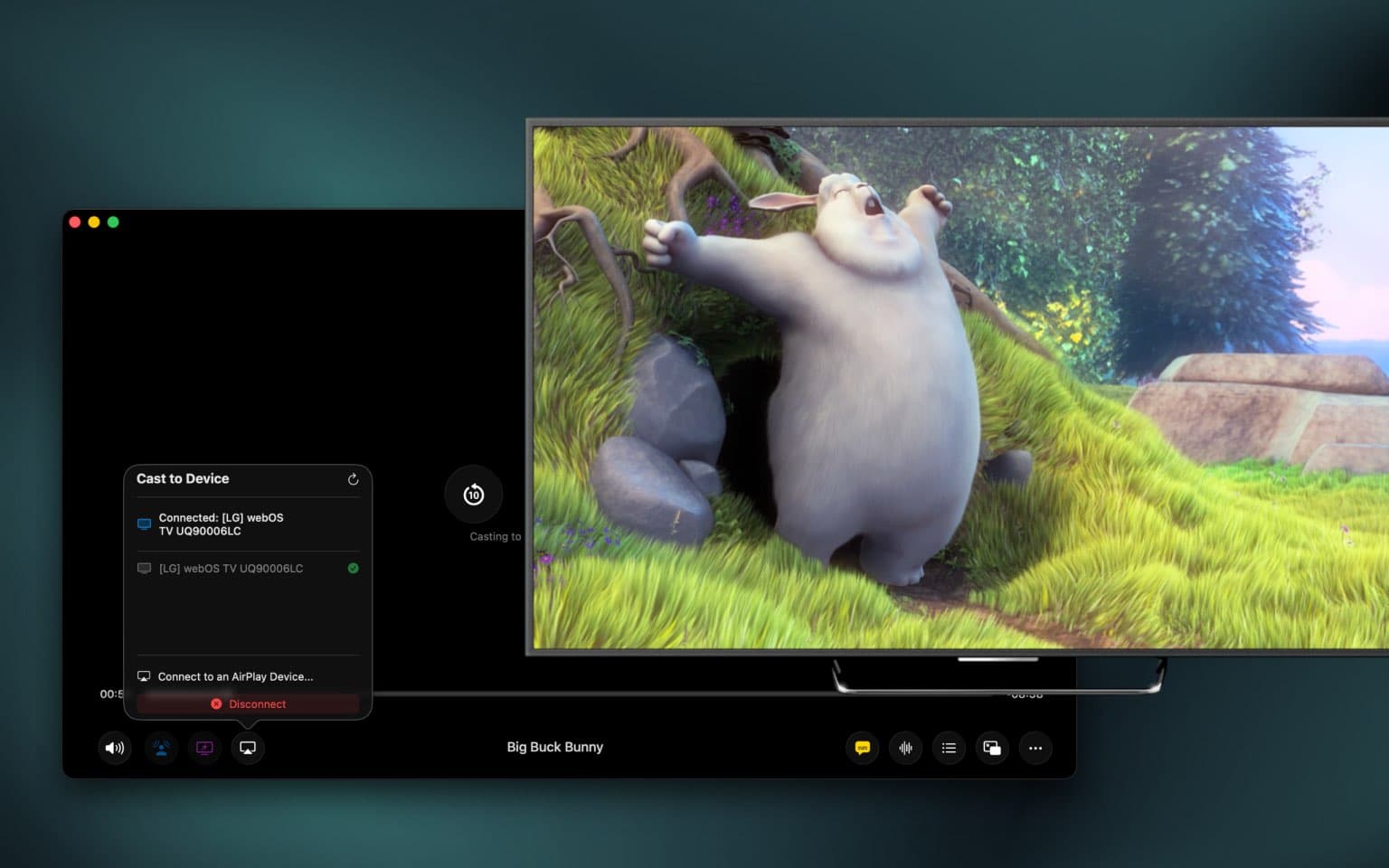
Some modern macOS players now support AirPlay, Chromecast, and DLNA directly from the app, making casting much simpler.
Final Thoughts
Casting from macOS isn’t broken — it’s just fragmented. Understanding which protocol your devices support makes a big difference.
If you mainly use Apple TV, AirPlay offers the smoothest experience. If you have a mix of devices, choosing a video player with built-in multi-protocol casting can save a lot of frustration.
With the right setup, casting video from your Mac can be just as smooth as watching it locally.